Theme
Switch between Light, Dark, and System appearance. Your choice follows you across devices.
Queringo ships Light, Dark, and System appearance. Your choice applies to the whole app and is saved to your account, so it follows you on every device you sign in from.

Change your theme
There are two places to switch theme. Both apply instantly and save on their own, so there is nothing extra to confirm.
- From the sidebar menu
Open the account menu at the bottom of the sidebar and pick Light, Dark, or System under Theme. The change takes effect right away.
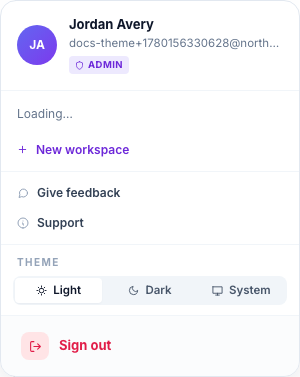
- From Profile settings
Go to Profile and choose a tile under Appearance. The two switchers always stay in sync.

The three options
| Option | What it does |
|---|---|
| Light | Always uses the light appearance. |
| Dark | Always uses the dark appearance. |
| System | Matches your operating system setting, and updates live when your OS switches between light and dark. |
Pick System if you let your OS switch appearance on a schedule (for example, light during the day and dark at night). Queringo will follow it without you changing anything here.
Where it applies and how it is saved
- The theme applies across every workspace you belong to. It is a personal setting, not a workspace one, so changing it does not affect teammates.
- Your choice is stored on your account and restored when you sign in on a new device or browser.
- The selected theme is applied before the page paints, so you will not see a flash of the wrong appearance on load.
Troubleshooting
- System mode is not following my OS
Confirm your operating system has a light or dark setting (and any schedule) configured. Queringo reads that setting only when the option is set to System. If you picked Light or Dark, it stays fixed by design.
- My choice did not carry to another device
The theme saves to your account when you are signed in. If you changed it while signed out (for example, on a marketing page), sign in and set it once more so it is stored on your account.
What's next
Manage the rest of your personal details on the Profile page.