Multi-factor authentication
Protect accounts with TOTP authenticator apps and recovery codes.
Multi-factor authentication (MFA) adds a second step to sign-in using a time-based one-time code from an authenticator app. Workspace admins can require it for everyone.
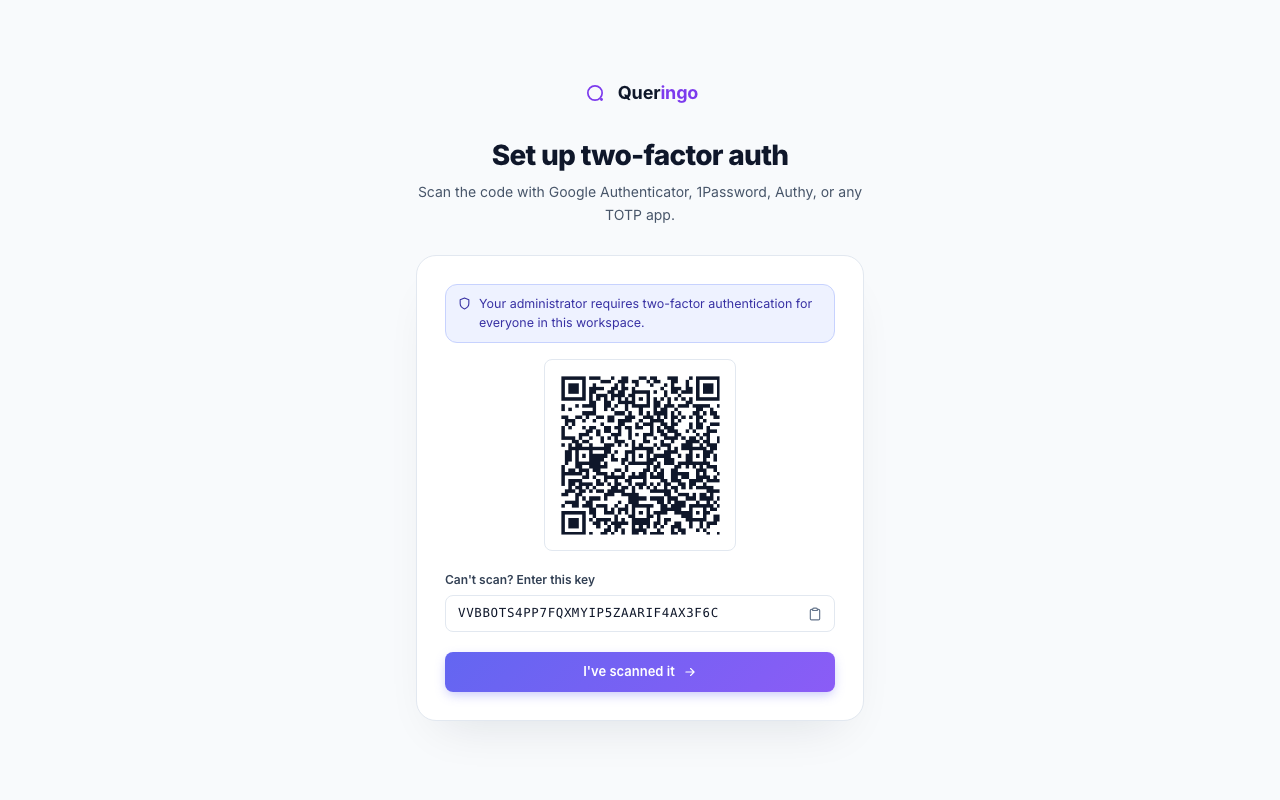
Setting up
- Enroll an authenticator
In your profile, scan the QR code with an authenticator app (any standard TOTP app works) and confirm the 6-digit code.
- Save recovery codes
You receive a set of one-time recovery codes. Store them somewhere safe; they are shown once and let you sign in if you lose your device.
Requiring MFA for the workspace
An admin can require MFA for all members from Authentication. The admin must have MFA enrolled themselves before turning the requirement on.
Keep your recovery codes safe and offline. If you lose both your authenticator and your recovery codes, an admin will need to help you regain access.
What's next
For company-wide identity, see SSO / SAML.