Alerts
Get notified when a metric crosses a threshold, on the cadence you choose.
Alerts watch a metric and notify you when it crosses a threshold. You set the condition, how often it is checked, and where notifications go.
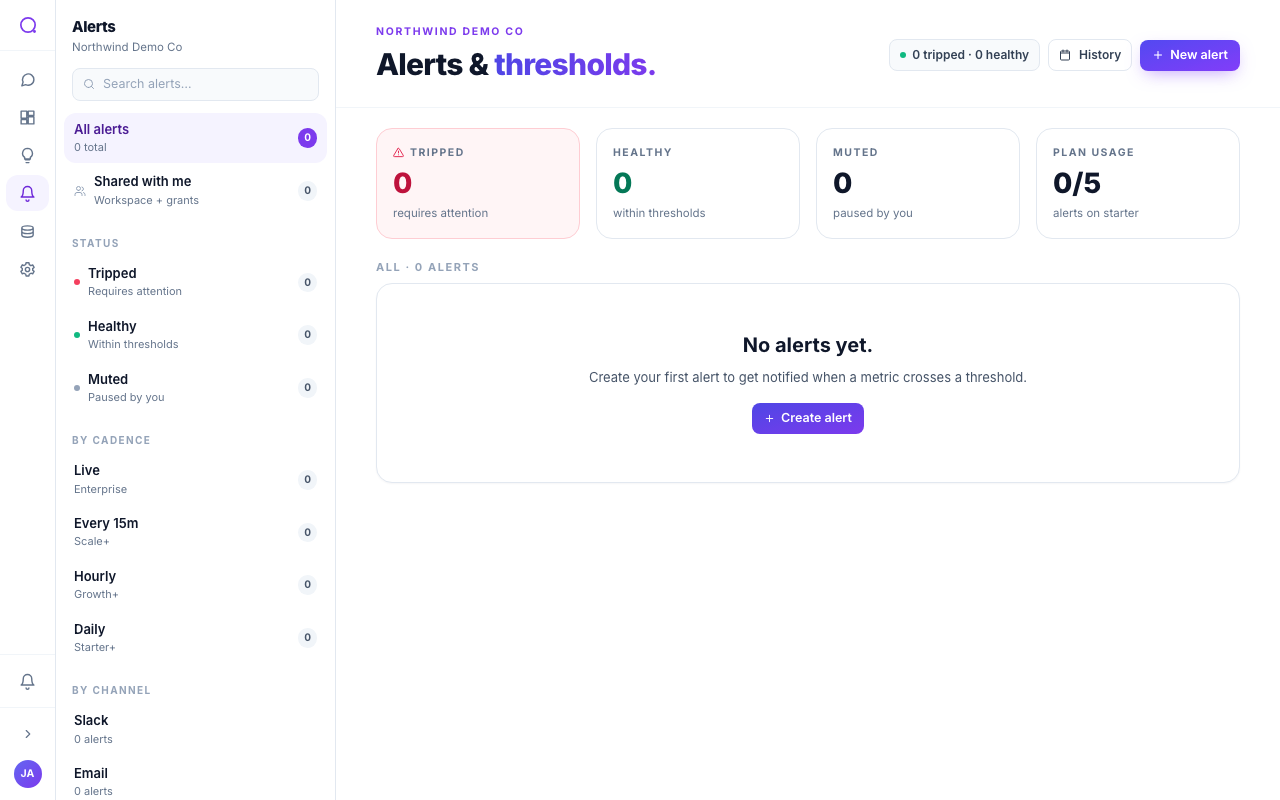
Creating an alert
- Open the composer
Create an alert from scratch, or seed one from an insight or an Ask Data answer.
- Set the threshold
Choose the comparison (such as above or below), a value, and the baseline window to compare against.
- Pick a cadence
Choose how often the alert is evaluated: Daily, Hourly, every 15 minutes, or Live, depending on your plan.
- Choose channels
Send to Slack, email, PagerDuty, or a webhook. See Notification channels.
- Test fire
Use Test fire to confirm delivery before relying on the alert.
Status, cadence, and de-duplication
- Each alert shows a status (Tripped, Healthy, or Muted) and a small sparkline of recent evaluations.
- De-duplication prevents repeated notifications while a condition stays tripped, so you are not spammed.
- Snooze an alert for 1, 7, 14, or 30 days when you need quiet.
Cadence by plan
| Cadence | Availability |
|---|---|
| Daily | Entry plan and up |
| Hourly | Mid plan and up |
| Every 15 minutes | Higher plans |
| Live | Top plan |
Alert counts are also plan-limited; the page shows your usage and an upgrade link if you reach the cap.
What's next
Set up where alerts go in Notification channels.