Connect your first database
Connect a Postgres, MySQL, or warehouse source so Queringo can answer questions on your real data.
To answer questions on your own data, Queringo needs read access to a database or one of our managed connectors. This guide covers the common case: a SQL database such as PostgreSQL or MySQL. The same steps apply to warehouses like Snowflake, BigQuery, and Redshift, with provider-specific credential fields.
Before you begin
Gather the connection details for a read-only account:
- Host and port
- Database name
- Username and password (a read-only role is strongly recommended)
- Whether the connection requires SSL or an SSH tunnel
Always connect with a least-privilege, read-only account. Queringo never needs write access to answer questions.
Steps
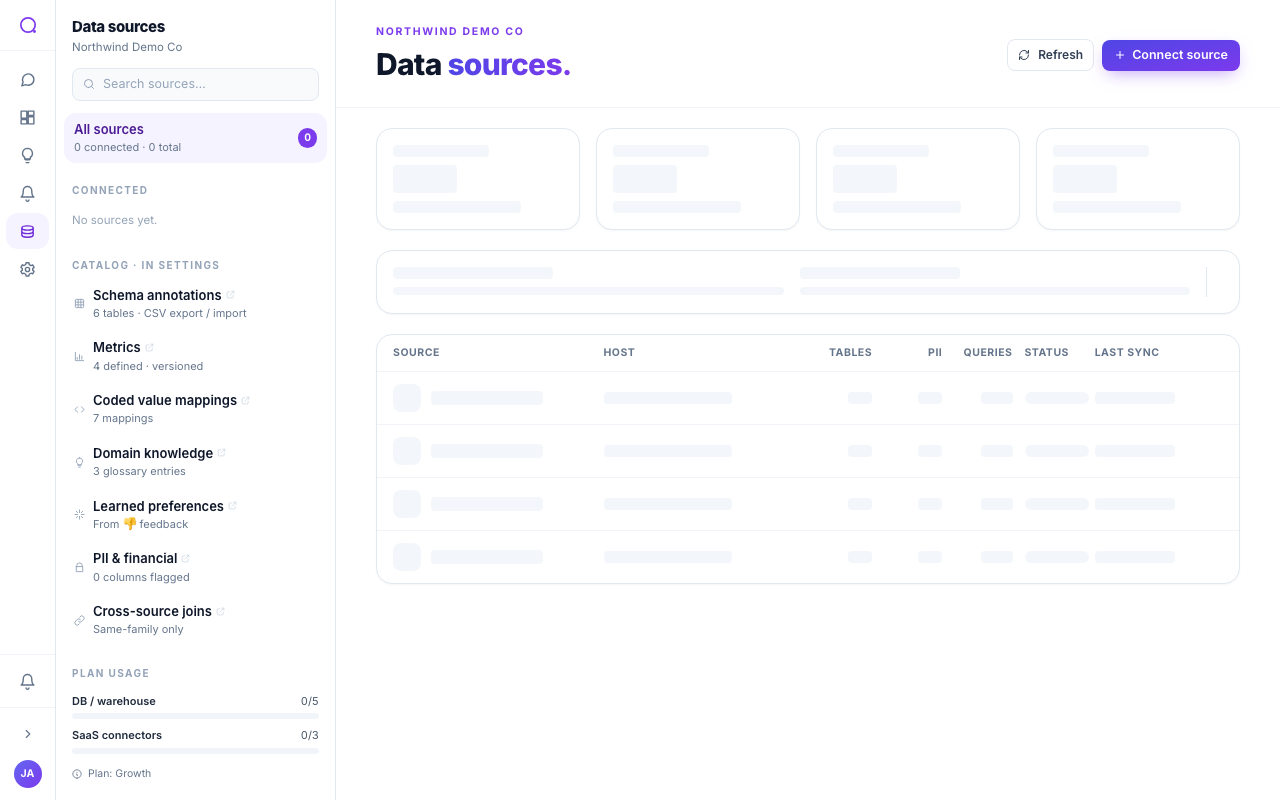
- Open Data sources
From the app sidebar, go to Data sources to see your connected sources and add a new one.
- Pick your connector
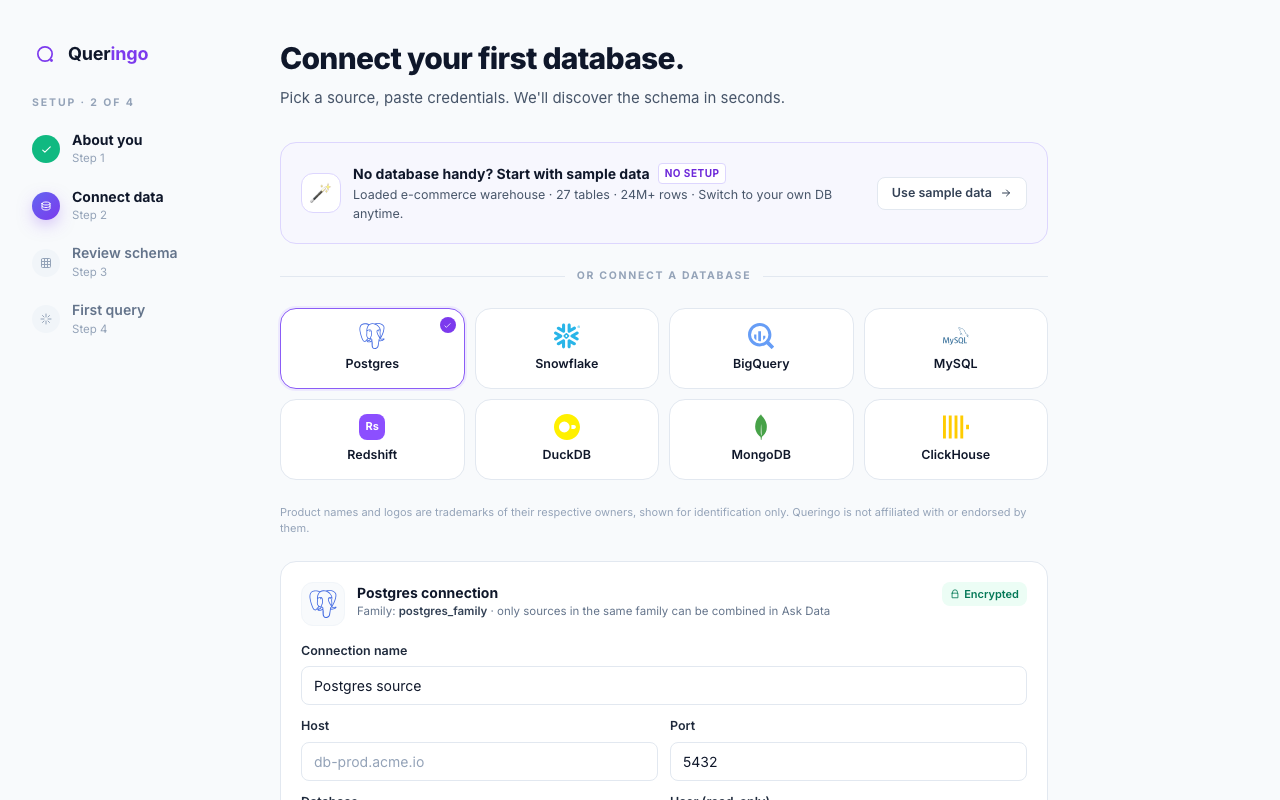
Select your database from the connector grid. Connectors are grouped into databases, warehouses, data lakes, managed connectors, and file uploads.
- Enter connection details
Fill in host, port, database, and credentials. Enable SSL if your database requires it. For a private network, configure an SSH tunnel.
- Test the connection
Choose Test connection. Queringo verifies it can reach the database and authenticate before saving anything.
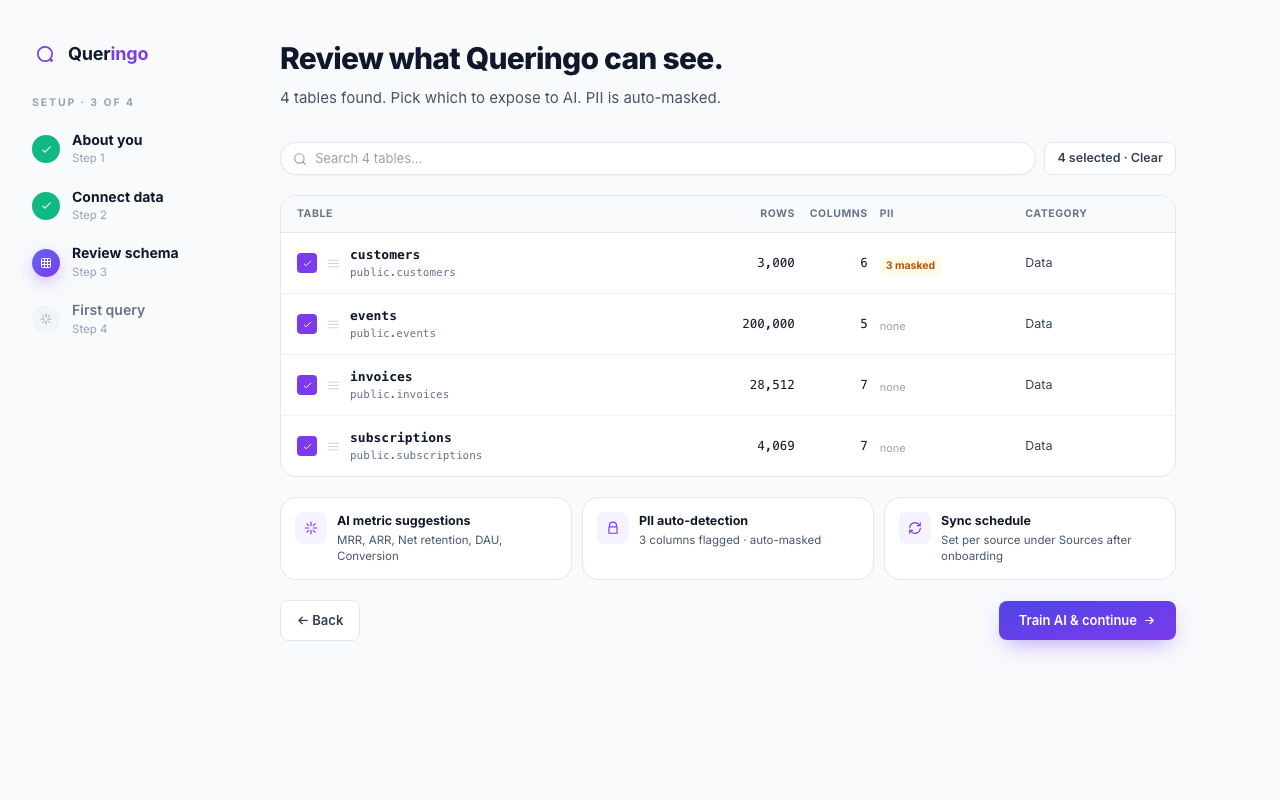
- Review the schema
After a successful test, Queringo discovers your tables and shows row and column counts plus any columns flagged as personal data. Confirm to finish.
Connection options
| Option | When to use it |
|---|---|
| SSL / TLS | Your database requires encrypted connections. |
| SSH tunnel | The database is in a private network with no public endpoint. |
| Read-only role | Always: gives Queringo exactly the access it needs. |
What's next
With a source connected, head to Ask Data and ask a question, or open the Quickstart for the end-to-end flow. You can rotate credentials or disconnect the source any time from Data sources.
Troubleshooting
- Connection refused or timeout: check the host and port, and confirm Queringo's network can reach the database (you may need an SSH tunnel).
- Authentication failed: verify the username and password, and that the role is allowed to connect from Queringo's address.
- No tables discovered: confirm the role has read access to at least one schema, then re-run discovery.