MySQL
Connect MySQL to Queringo. Setup, fields, testing, editing, and alternatives.
Connect MySQL to query your databases data in Queringo.
At a glance
| Category | Databases |
| Auth | Credentials |
| Plan | Starter and above |
| Default port | 3306 |
Setup
- Open Connect source
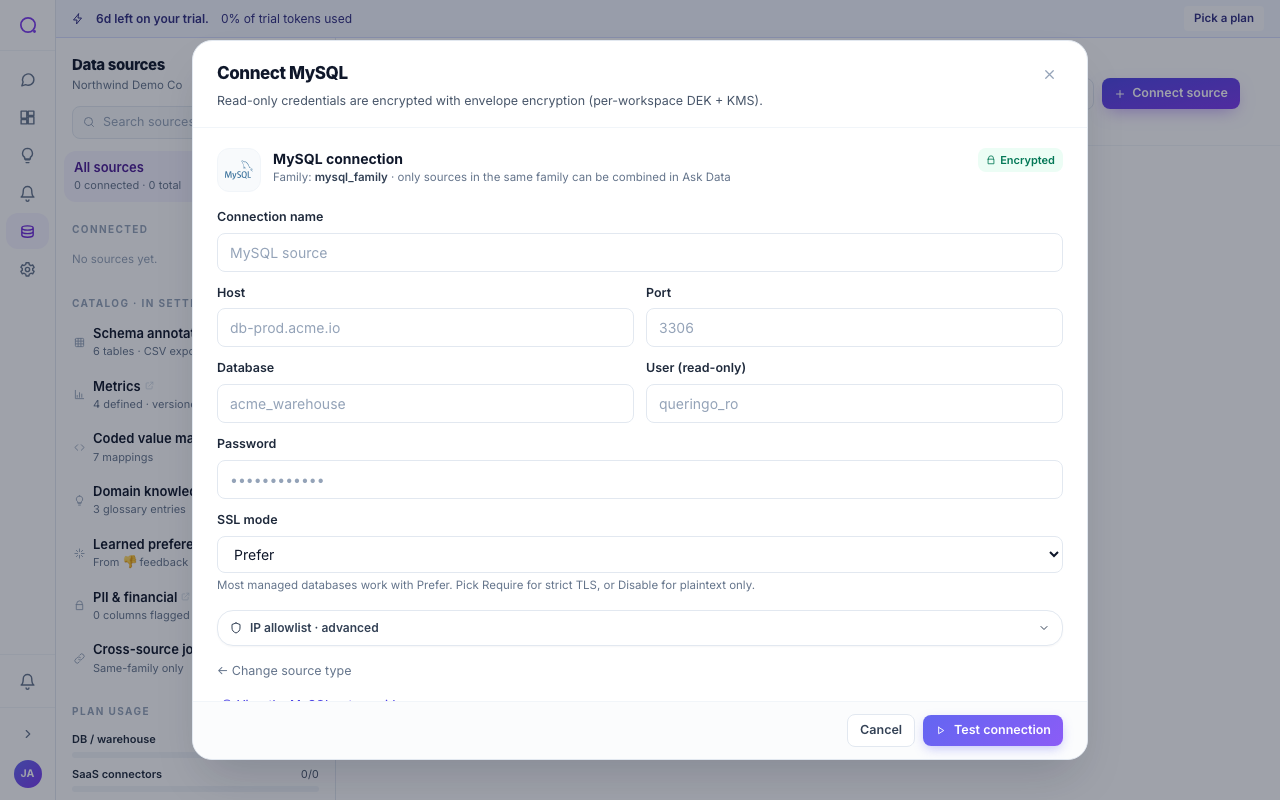
In the app, go to Data sources and choose Connect source. Open the Databases tab and select MySQL.
- Enter connection details
Provide the host, port, database name, and a read-only user and password. The default port is
3306. Enable SSL/TLS if your database requires it, or configure an SSH tunnel for a private network. - Save the connection
Queringo tests the connection before saving, then discovers the schema. PII is flagged and masked by default during discovery.
Where to find these in your provider
- Sign in to MySQL as an administrator.
- Create a read-only user:
CREATE USER 'queringo'@'%' IDENTIFIED BY '…'; GRANT SELECT ON your_db.* TO 'queringo'@'%'; - Run
FLUSH PRIVILEGES;to apply the change. - Open port 3306 to Queringo, or connect via an SSH tunnel.
Test the connection
Queringo runs a connection test as part of saving. If it fails, the error message indicates what to check (credentials, network reachability, or scope). From Data sources, you can re-run Test connection on the source row any time, for example after rotating a secret or changing network rules.
Edit or rotate
To change connection details (host, port, or database), open the source from Data sources and edit it. To swap only the secret (password, key file, or token), use Rotate credentials so existing dashboards and alerts keep working. See Rotating credentials.
Reference
Suggest a different connector
Don't see what you need? In the Connect a data source picker, choose Request it. Queringo bundles votes from every workspace asking for the same one and prioritizes accordingly.
Related connectors
What's next
For the category overview and shared options, see Databases. To keep sources healthy, see Managing sources.